Back Up and Move a Calculator Vault
Back up to an account you control, turn on the app’s own backup, test a restore, and only then wipe the old phone. Uninstalling a vault app can delete everything stored inside it.
| Applies to | iPhone, iPad and Android |
|---|---|
| Time needed | 20 to 30 minutes plus sync time |
| Difficulty | Moderate |
| Cost | Free, within your cloud storage limit |
| Needs internet | Yes, for cloud backup and restore |
| Last verified | November 2026 |
Before you upgrade
The safe order of steps
Moving a vault is easy to get wrong in one specific way: wiping or trading in the old phone before the new one is proven. Most “my photos vanished” stories begin there. The order below avoids it.
Back up first
Copy photos and files to a computer or cloud account you control.
Turn on the app’s backup
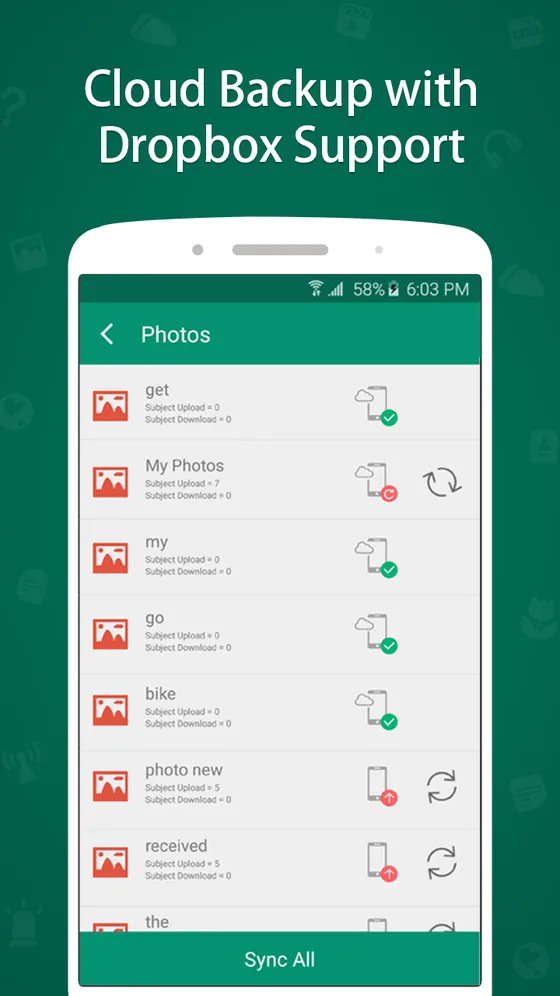
Enable cloud backup inside the vault app and let it finish.
Test a restore
Reinstall or use a spare device and confirm test files return.
Install on the new phone
Install the same app, sign in, and restore.
Check, then wipe the old phone
Open several files on the new phone, then erase the old one.
What can be backed up
Photos, documents and audio
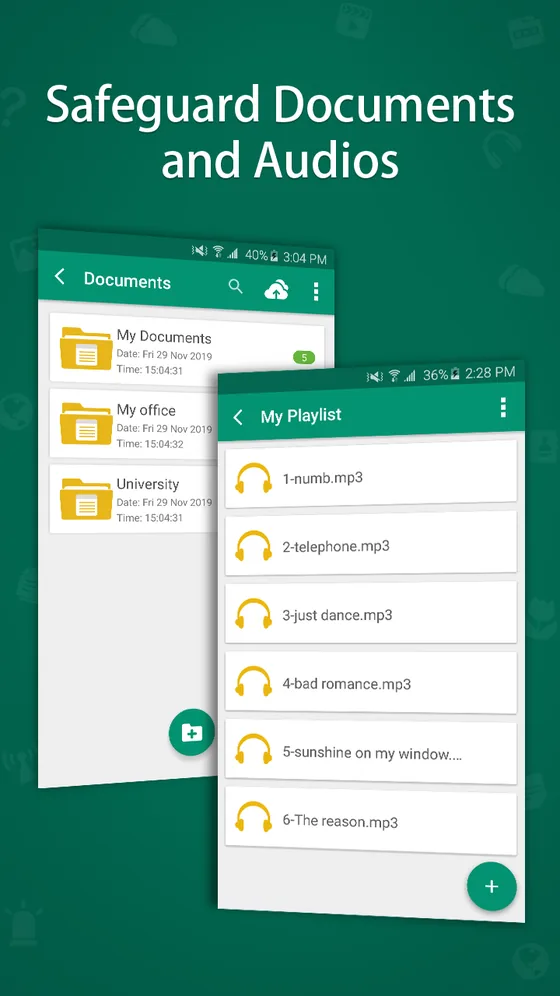
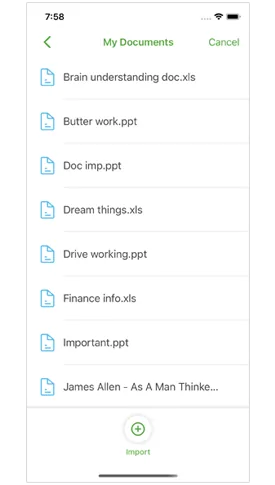
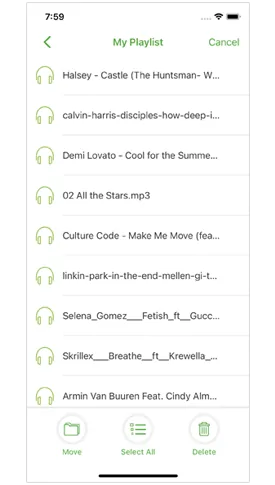
Calculator#’s listing covers photos, videos, documents, audio, notes and passwords, so decide what you are moving before you start. Count items on both phones afterwards.
Retiring the old phone
A factory reset is the usual step, but it is worth reading what a reset does and does not remove. This article on whether personal information can still be extracted from a recycled phone explains why wiping carefully matters. Do it only after the new phone is confirmed.
If you are choosing a new vault, the comparison table shows built-in and app options side by side, and the iPhone and Android page covers platform specifics. For the app we recommend, see the Calculator# product page.
Common question
Questions about backups and phone upgrades
How do I back up a calculator vault before changing phones?
Turn on the app’s backup to an account you control, wait for it to finish, then restore on a spare device or after a reinstall to check. Do this before you wipe or trade in the old phone.
Which cloud services does Calculator# list for backup?
Its App Store listing names iCloud, Dropbox, Google Drive and OneDrive, and its product page describes backup to your own cloud account. Availability can differ by version and platform, so check the screen in your copy.
What happens to hidden photos if I uninstall the app?
In many vault apps they are deleted with the app. Treat uninstalling as destructive until you have confirmed a backup exists and restores.
Can I move a vault from Android to iPhone?
Not usually directly. Apps keep vault data in their own format, so the practical route is exporting the files back to the gallery or a computer, then importing them into the new app.
Should I delete the old phone’s data after moving?
Yes, but only after you have opened a few files on the new phone. Then follow the guidance in the recycling article we link below about wiping a phone before it leaves your hands.
Keep reading