Calculator Vault Complete Guide 2026
You searched for a calculator that hides photos. This guide explains what that actually means, how far the protection goes, which free tools already exist on your phone, and how to set one up without losing your files.
A calculator vault is an app that looks like a normal calculator and opens a private vault when you type a secret code. It keeps photos and videos out of your normal gallery, but it hides content rather than making you invisible, so use a strong code and keep a separate backup.
| Applies to | iPhone, iPad and Android phones |
|---|---|
| Time needed | About 10 minutes to set up |
| Difficulty | Easy |
| Cost | Built-in options are free; most apps are free with optional purchases |
| Needs internet | Only for cloud backup |
| Last verified | November 2026 |
The basics
Calculator Vault — Complete Guide
A calculator vault is a privacy app wearing a disguise. On the home screen it appears to be a plain calculator, and it behaves like one: type 12 + 30 and you get 42. Type your secret code instead, and the same screen opens a private space holding the photos, videos, notes and files you chose to hide.
People use them for ordinary reasons: keeping family pictures away from a shared tablet, stopping a screen full of private documents from appearing in a gallery, or simply not handing a phone to a child with every photo on display. The disguise matters because a normal “photo locker” icon invites curiosity, while a calculator does not.
The same disguise creates the first thing to understand. Hiding is not the same as protecting. A good calculator vault does both, keeping the files out of the gallery and storing them in a protected form. A poor one only renames or moves them. The rest of this guide helps you tell the difference, and explains the built-in alternatives that already sit on your phone.
Who this guide is for
Adults who want to keep their own photos and files private on their own phone, and parents who want to understand what a vault app on a family device is. It does not cover getting into someone else’s vault, and it will not help with that: a vault you do not own is not yours to open.
What you will be able to do afterwards
- Explain, in two sentences, how a calculator vault differs from an ordinary gallery lock.
- Choose between a built-in option and a vault app for your situation.
- Set one up, check that it worked, and back it up so a lost phone does not mean lost photos.
- Recognise the five mistakes that cause most “my photos disappeared” stories.
Before you begin
What you need before starting
A phone you control
An iPhone or iPad on a recent iOS, or an Android phone that can install apps from Google Play. A vault app cannot protect a phone that someone else can unlock.
A screen lock
Set a screen lock first. Google Photos’ Locked Folder requires one, and every vault is weaker if the phone itself opens with a swipe.
A separate backup
Copy the files you are about to hide to a computer or a cloud account you control. This is the single step that turns a mistake into an inconvenience.
Setting Up Your Vault Step-by-Step: the short version
- Back up the files you plan to hide.
- Install the app and set a six-digit or longer code that is different from your phone’s passcode.
- Import three test photos and check that they leave the normal gallery.
- Open the app again from a cold start to prove the code works, then move the rest.
- Turn on the backup route and test a restore before you rely on it.
A fuller walkthrough with the app we recommend appears in the tutorial section.
The concept
How a Calculator Vault App Works
Three parts do the work. The front is a working calculator, which is what anyone sees when they open the app. The gate watches the keypad for your code. The vault is storage the app controls, kept apart from the system gallery so that other apps and the Photos app do not list it.
The quality of the product depends on the third part. Some apps encrypt the stored files with a key derived from your code. Others only move files into a folder the gallery ignores. Both look identical from outside, which is why the store description alone cannot tell you which you have.
Extras you will see on the better apps: a decoy code that opens a harmless second vault, a log of wrong-code attempts, a way to change the icon, and a backup route. Each one is explained further down. The detailed mechanics deserve their own article; here we keep to what helps you choose.
Free options first
Best Free Methods for Calculator Vault
Before installing anything, check what your phone already does. Two built-in tools cover many needs, and neither requires an account or a disguise.
Native method: iPhone Hidden album
In the Photos app, select a photo, tap the menu, and choose Hide. It moves to the Hidden album under Utilities. On iOS 16 and later that album is locked with Face ID, Touch ID or your passcode, and you can switch it off in the album list through Settings → Photos (turn on Use Face ID and turn off Show Hidden Album if you also want it out of sight).
Good for
- Free, built in, no new app
- Locked by your biometrics
Limits
- Photos and videos only
- Anyone who knows your passcode can open it
Native method: Android Locked Folder
Google Photos includes a Locked Folder on Android 6 and later, protected by your device screen lock, so you need a screen lock set up first. Items inside stay out of the photo grid, memories, search and other apps. By default they are stored only on that device.
Good for
- Free, built in
- Optional backup route
Limits
- Unbacked items are lost if you uninstall Photos, clear its data, or lose the phone
- Photos and videos only
When a disguised vault is worth adding
Choose an app when you need more than pictures (notes, documents, audio, passwords), when a locked album is still visible as a feature on your phone, or when you want a decoy code and an attempt log. Make that choice with open eyes: the disguise hides the app, and Apple’s and Google’s tools hide nothing about themselves because they do not need to.
Reality check
Is It Really Safe?
Short answer: safe enough against a curious person holding your phone, not a promise against a skilled attacker or a careless setup. The risks are practical, not mysterious. Many calculator vaults leave traces in recent-app lists, thumbnails, device backups or cloud sync; a four-digit code is easy to guess; and if the photos live only inside the app, deleting the app can delete your last copy. A guide from the NewSoftwares.net blog on calculator vault risks makes the same point about disguise not being encryption.
Protects against: casual browsing, a shared gallery, a quick glance.
Does not protect against: a forgotten code with no recovery, a phone left open, an unencrypted backup, or an app that stores files unprotected.
Platform coverage
Where calculator vaults work: Android, iOS and Windows
| Platform | Built-in option | Calculator-style vault apps | Notes |
|---|---|---|---|
| iPhone / iPad | Hidden album, locked with Face ID, Touch ID or passcode (iOS 16+) | Many on the App Store | Read the store privacy label and in-app purchase list |
| Android | Google Photos Locked Folder (Android 6+); some phones add a secure folder | Many on Google Play | Backup is optional and easy to forget |
| Windows / Mac | Folder encryption or disk encryption | Phone-first; none listed for desktop in this guide | Use a folder-locking tool for a PC |
Decoy passcode explainer
Decoy passcode and fake vault mode
A decoy code opens a second, harmless-looking vault instead of the real one. The idea is simple: if you are pressed to open the app, you can show the decoy. Treat it as an extra layer, not a reason to store something you should not have. It only works if you remember which code is which, and not every app offers it.
Break-in alert photos and attempt logs
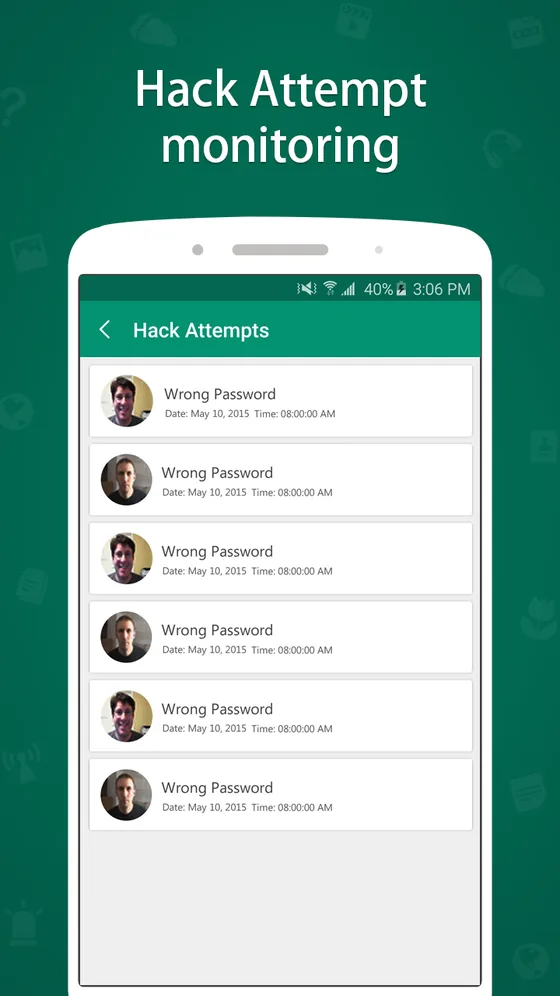
Some apps record wrong-code attempts, and some also take a photo with the front camera. They help you notice a problem; they do not stop it. Treat the log as information, and change your code if it shows attempts you did not make. Apps vary, so check whether the one you pick records attempts at all.
Side by side
Methods comparison
| Method | Difficulty | Security | Cost | Best for | Limitations |
|---|---|---|---|---|---|
| iPhone Hidden album | Easy | Face ID / Touch ID / passcode lock | Free | Everyday photo privacy on iPhone | Photos and videos only; passcode holders can open it |
| Android Locked Folder | Easy | Screen lock | Free | Private photos on Android | Unbacked items can be lost on uninstall or phone loss |
| Calculator-style vault app | Easy to moderate | Varies by app | Free tier with paid extras is common | Photos, notes, files, plus a disguise | Quality varies; backup and restore need checking |
| Calculator# (NS Vault) | Easy | Secret code; the App Store listing also names PIN, password, pattern and biometric locks | Free with ads; optional purchases | Photos, videos, notes, audio and more, with cloud backup | iPhone, iPad and Android only; read the privacy label |
| Encrypted notes or zip file | Moderate | Depends on the tool and password | Free to low | A few documents | Clumsy for photos and video |
| Verdict | Start with the built-in tool for photos. Add a vault app when you need notes, files, a disguise or a decoy, and only after you have a backup. | ||||
Pick your situation
Is Calculator Vault Enough? What Else to Do
A vault is one piece of privacy. Keep your phone’s own security current, use a strong screen lock, and check what your cloud backup copies. Use the helper to see which route suits you.
Sharing a family tablet
Hidden album or Locked Folder, plus a separate profile if the device allows it.
Lots of notes and documents
A vault app that stores more than photos, with a backup you have tested.
Phone upgrade coming
Read our backup and move guide before you change devices.
Editorial pick
The tool we recommend for most readers
Of the options covered here, we recommend Calculator# (NS Vault) for readers who want a calculator-style vault on iPhone, iPad or Android. It is developed by the same NewSoftwares.net team that publishes this guide, so treat that as a disclosure, not a neutral review. What we can point to is what the product documents: a calculator icon by default, a secret code entered on the keypad, locked photos, videos and audio, password-protected notes and cloud backup to your own account.
Limits matter too. It is a phone app, so it does not help on Windows. The App Store listing shows ads and optional purchases on the free version, and its privacy label should be read before you install. If you only need to hide a handful of photos, the built-in album above is the simpler answer, and we say so plainly.
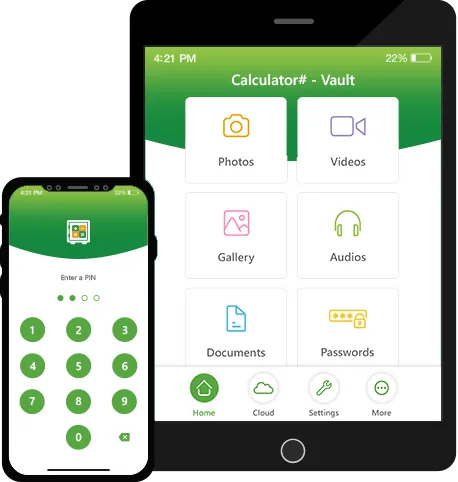
What it offers
Features worth knowing
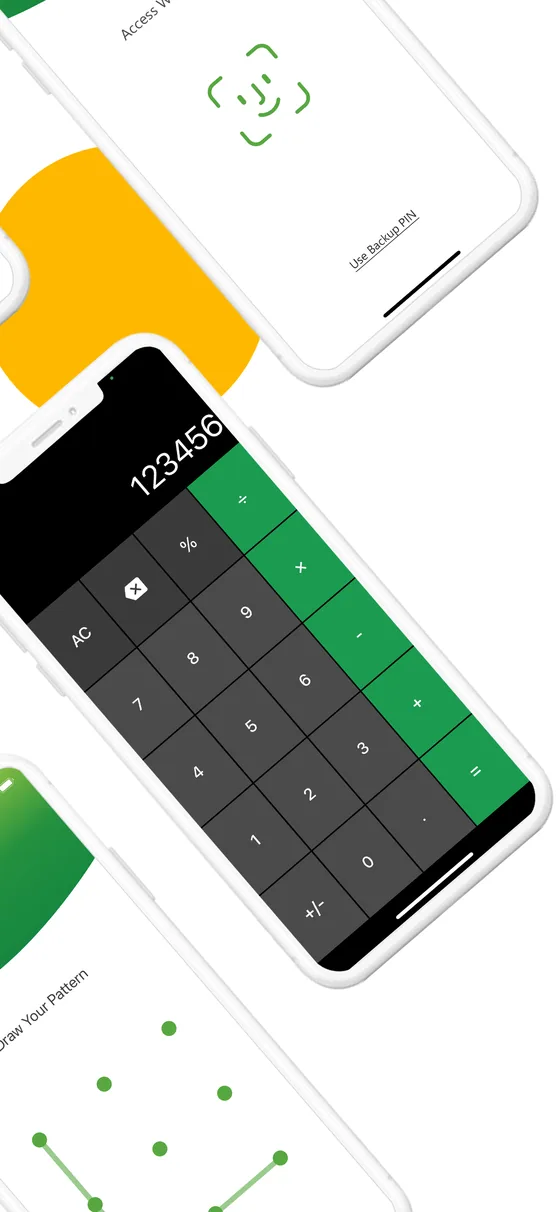
Calculator disguise
The icon and screen look like a calculator. Best for: keeping the app unremarkable. Not ideal for: anyone who already knows what it is.
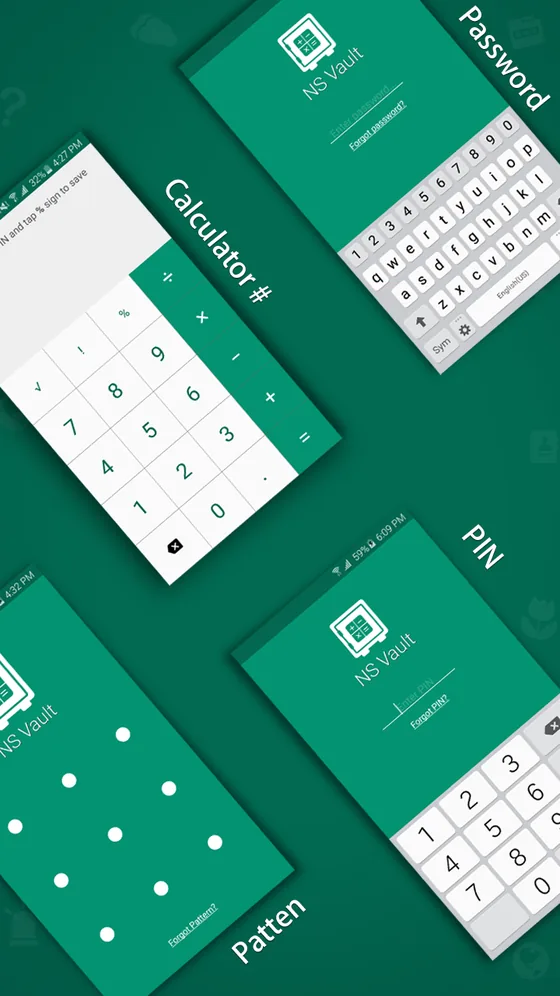
Several lock types
The App Store listing names a calculator code, PIN, password, pattern, and Touch ID or Face ID. Best for: picking one you will remember.
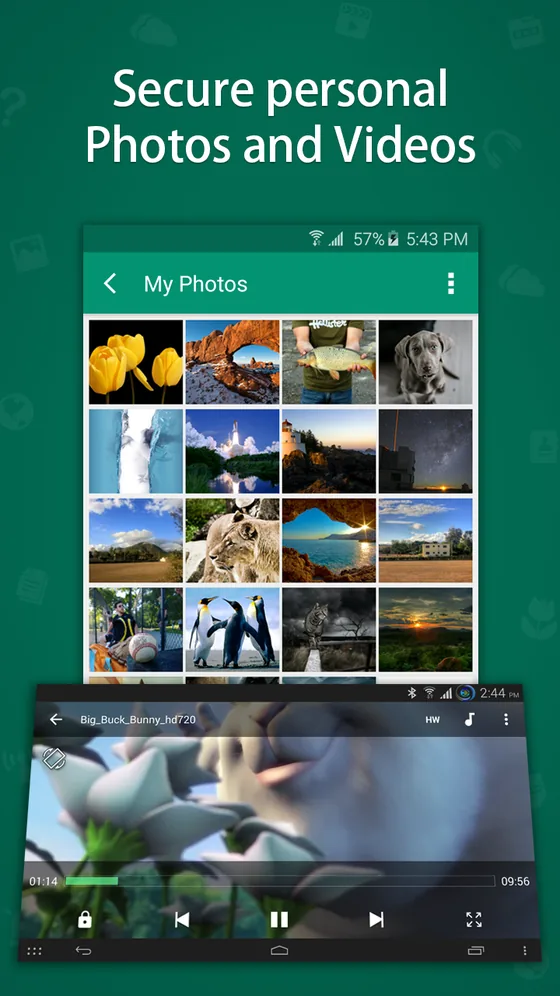
Photos and videos
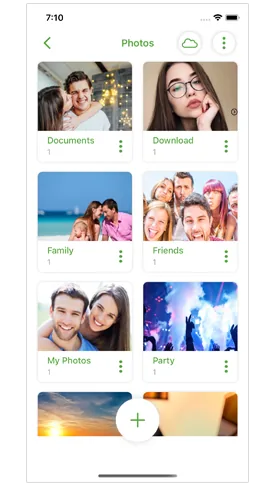
Import from the gallery or capture in-app. Best for: moving private media out of the main gallery.
Attempt monitoring
The listing describes logging failed sign-in attempts. Best for: noticing guesses. It records; it does not prevent.
Notes, audio and documents
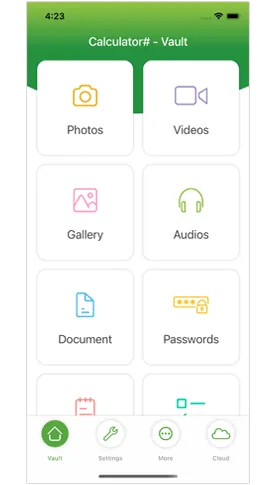
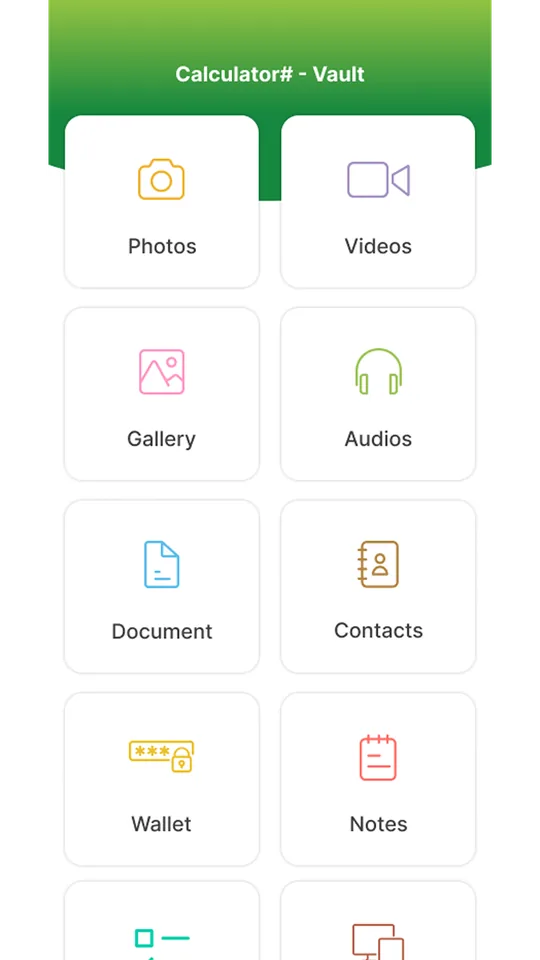
The product page lists password-protected notes and audio files, and the App Store listing adds documents, a password manager and contacts. Best for: keeping more than photos in one place.
Cloud backup
The product page describes backup to your own cloud account; the App Store listing names iCloud, Dropbox, Google Drive and OneDrive. Best for: surviving a lost phone. Check: test a restore.
Step by step
How Calculator Vault Works — Step-by-Step
This walkthrough uses Calculator# to show the pattern. Other apps differ in menu names, but the order is the same.
Back up what you plan to hide
Copy the photos and files to a computer or cloud account first. Nothing below is risky if this step is done.
Install and set your secret code
Install the app, open it, and create your code. Use six digits or more, and do not reuse your phone’s passcode.

Import three test photos
Pick a few harmless pictures, import them, and choose to remove the originals if the app offers it. Check that they are gone from the normal gallery.
Reopen from a cold start
Close the app completely, reopen it, and enter the code. If you cannot get back in, fix that now, not after you have moved everything.
Turn on backup and test a restore
Switch on cloud backup to an account you control, then confirm the test files return after a reinstall or on a spare device.
Move the rest in small batches
Delete old copies only after you have confirmed the vault copies open. Then run the FAQ and checklist once more.
Open the normal gallery and search for the files you moved: they should not appear. Reopen the vault from a cold start: they should. Check the backup list: the files should be there. If any of the three fails, stop and fix it before moving more.
Under the hood
Local versus cloud, and what happens on uninstall
How vault apps encrypt photos and videos
Better apps derive a key from your code and store the files in an encrypted form. Weaker ones only move the files. A store page claiming strong encryption is a claim, not a test, so favour apps that state their method and let you verify the backup route.
Local-only versus cloud-synced vaults
A local-only vault never leaves the phone, so losing the phone loses the files. A cloud-backed vault survives that, at the cost of trusting the backup account. Pick based on which loss you fear more, and protect the account with a strong password and two-step sign-in.
What happens if you uninstall a vault app
For apps that store items inside their own space, uninstalling can remove everything. Several store listings state this outright. Back up first and treat reinstalling as an operation you rehearse, not an emergency.
Choosing a vault app without ads or tracking
Read the privacy label, check whether ads appear in the free version, and look at the developer’s other apps. A paid version often removes the ads; confirm what is included.
Cost
Calculator# pricing: what you get

On iPhone and iPad
The App Store listing shows the app as free to download, with ads and limitations, and an ad-free full version available as a purchase. When we checked in November 2026 it listed a yearly subscription and a premium features pack at $4.99 each.
On Android
Pricing for Android is shown on the Google Play page, which varies by region, so read it before installing. See the product page for the current links.
Is it worth it? If you only hide a few photos, the built-in album costs nothing and may be enough. If you want notes, audio, a disguise and a backup in one place, the free version is a fair way to try it before you decide on the paid features.
Match the tool to you
Who should use which option
| You are | Recommended | Fits Calculator#? | Honest alternative |
|---|---|---|---|
| Hiding a few photos on iPhone | Hidden album with Face ID lock | Not needed | The built-in album |
| Hiding a few photos on Android | Locked Folder, backup optional | Not needed | The built-in folder |
| Wanting notes, audio and files too | A vault app | Yes, on iPhone, iPad and Android | Encrypted notes app |
| Wanting a disguised app icon | A calculator-style vault | Yes | Other calculator vaults; compare the privacy labels |
| Using only a Windows PC | Folder or disk encryption | No | A desktop folder-locking tool |
From the same developer
Related apps from NewSoftwares
These tools are developed by NewSoftwares.net, the same team behind Calculator#. They solve neighbouring problems.
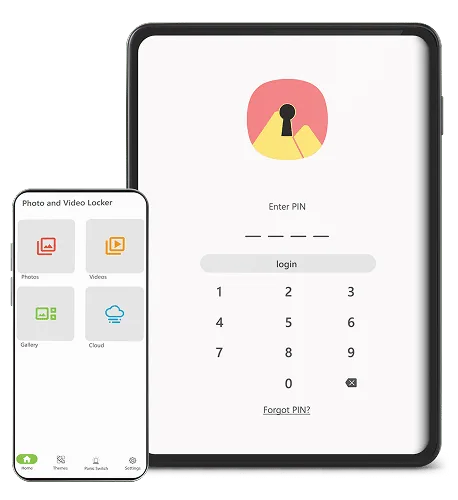
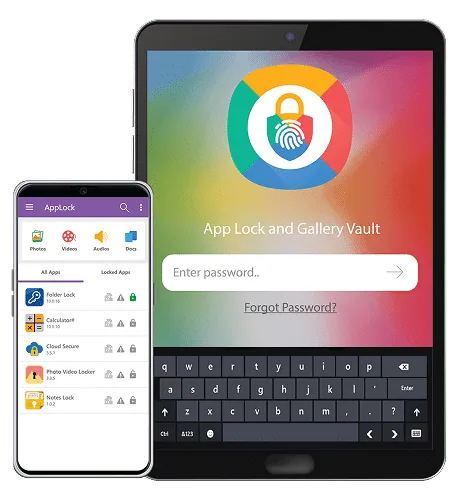
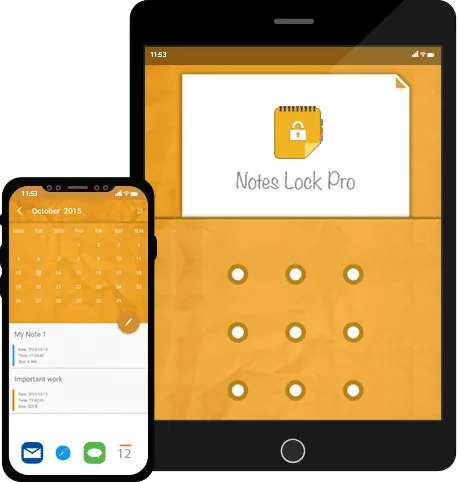
App Lock & Gallery Vault
Locks individual Android apps and hides a gallery. Read about App Lock & Gallery Vault.

Looking for a photo and video vault on iPhone that is not calculator-styled? The Vault - Hide Photos and Videos listing describes it.
When something goes wrong
Calculator Vault: Troubleshooting & Verification
| Problem | Likely cause | Fix |
|---|---|---|
| The calculator opens but not the vault | Wrong or forgotten code, or the app was updated and reset a setting | Try your code slowly, then follow the owner-recovery steps in our login guide. No one can legitimately skip the code on a vault you do not own. |
| Photos moved but still show in the gallery | The app copied instead of moving | Check import settings, confirm the vault copies open, then delete the originals yourself. |
| Everything vanished after reinstalling | Items lived only inside the app | Look for a backup in the account you set up. See the backup guide. |
| The vault works but the backup fails | No sign-in, no storage, or Wi-Fi off | Sign in again, free up space, retry on Wi-Fi. |
| A new phone shows an empty vault | No restore route used | Restore from your backup before wiping the old phone. |
How to recover access to a vault you own
Check whether the app has a recovery email, a security question or a cloud backup. Some apps deliberately offer no reset, because a reset would also let someone else in. If yours has none, the honest answer is that the contents may not be recoverable. We do not publish ways around other people’s locks.
Avoid these
Common Mistakes With Calculator Vault
Moving everything at once
Move three test files, confirm, then the rest. Large batches hide the problem until it is too late.
Reusing the phone code
If someone learns one, they have both. Use a different, longer vault code.
Keeping no backup
This is the most common cause of Common Mistakes That Lose Hidden Photos stories: the vault was the only copy.
Never testing a restore
A backup you have not restored is a hope, not a backup.
Leaving originals behind
The point is lost if the gallery still shows the picture.
Uninstalling to “clean up”
Check the store listing’s uninstall warning first. It may delete everything.
Common question
Frequently asked questions
What is calculator vault?
A calculator vault is a phone app that looks and works like an ordinary calculator but opens a private storage space when you enter a secret code. Photos, videos, notes and sometimes documents live inside that space instead of in your normal gallery. The disguise hides the app’s purpose; it is a privacy layer, not a guarantee against a determined attacker.
How does calculator vault work?
You set a secret code (a PIN, pattern or password, depending on the app). Typing that code on the calculator keypad opens the vault, while typing a normal sum gives a normal answer. You then import photos and videos, and good apps offer to remove the originals from your gallery so only the vault copy remains. The step-by-step section below walks through it.
Is calculator vault safe?
It is safe against casual snooping, such as someone scrolling your gallery. It is not a substitute for a screen lock, an encrypted backup or a trustworthy developer. Disguise is not the same as encryption, and some apps leave traces in thumbnails, recent-apps views or device backups. Our safety section gives a short checklist.
What is the easiest way to get started with calculator vault?
Install one app, set a six-digit or longer code that differs from your phone passcode, then move three test photos in and confirm they disappeared from the normal gallery. Only after that, move anything important, and keep a backup of those files elsewhere first.
What are the common problems with calculator vault?
The usual ones are forgetting the code with no recovery route, losing the vault when the app is uninstalled or the phone is replaced, originals still showing in the normal gallery, and photos appearing in a phone backup you did not expect. The troubleshooting table below maps each problem to its cause and fix.
Is a calculator vault app safe for private photos?
Safe enough for everyday privacy if the app encrypts what it stores, you use a strong code, and you keep a separate backup. For highly sensitive material, assume the app is one layer among several, not the only one.
What happens to my hidden photos if I uninstall the app?
Depending on the app, they can be deleted for good. Several store listings state that uninstalling removes everything stored inside the vault. Back up first, or use an app that backs up to an account you control, and confirm that you can restore before you uninstall anything.
Can I move my vault to a new phone?
Only if the app offers a backup or export route. Calculator# lists cloud backup to your own account on its product page, and its App Store listing names iCloud, Dropbox, Google Drive and OneDrive. Our backup guide covers the safe order of steps.
Does a calculator vault app work offline?
Usually yes for opening items already stored on the phone, because the files live locally. Features that need the internet, such as cloud backup or an in-app browser, naturally do not.
How can parents tell if a vault app is installed?
Look for calculators that duplicate the built-in one, apps that have no obvious purpose, and storage that is used up by an app that seems small. The parent guide explains what to check on iPhone and Android, and why a calm conversation works better than a secret search.
Can I hide videos and documents as well as photos?
Most calculator vaults accept videos, and many accept documents, audio, notes and passwords. Calculator#’s product page lists photos, videos, notes and audio files; its App Store listing also lists documents, passwords and contacts. Check the exact list for the app you choose.
Is there a free calculator vault?
Many are free to install and paid for extras. The Calculator# App Store listing, for example, shows a free download with ads and limitations plus optional purchases at the time we checked. Prices differ by region and change, so read the current listing.
Does the iPhone already have a way to hide photos?
Yes. The Photos app has a Hidden album that, on iOS 16 and later, can be locked with Face ID, Touch ID or your passcode. Turn the lock on in Settings → Photos. It is free and built in.
Does Android have a built-in locked photo folder?
Google Photos offers Locked Folder on Android 6 and later with a screen lock set up. Items in it are stored only on the device unless you turn backup on, and they can be lost if you uninstall the Photos app, clear its data or lose the phone.
More detail
In-depth answers
Calculator vault alternatives
The first alternative is the built-in album or folder, which covers photos for free. After that come other calculator-style vaults, which differ mostly in backup support, ads and how clearly the developer explains storage. When comparing, read the privacy label, check whether a restore route exists, and look at how recently the app was updated.
Is calculator vault worth it?
Worth it when you need more than a locked album: notes, documents, audio, a disguise, or a backup you control. Not worth it if you only hide a few photos and you can use the built-in tool. Try the free version, run the checklist, and decide.
Calculator vault reviews
Store ratings and written reviews are useful for spotting repeated complaints, such as ads or failed restores, but they are weak evidence for security. Prefer the developer’s own documentation, the privacy label and your own test with three harmless files.
Calculator vault for Android and for iPhone
Both are covered in the platform table above. Our iPhone and Android page goes into download steps, compatibility and free-versus-paid detail.
Calculator hide online photos
Moving a photo into a vault does not remove it from places it already went. Pictures that were uploaded, shared or synced earlier can still exist elsewhere, so review your cloud photo library and messaging apps too.
Social media vault
A social-media vault is a different tool, made for private browsing of social accounts rather than photo storage. We list the iPhone app under related apps above for readers who mean that.
Next steps
Go deeper
Our verdict
The bottom line
A calculator vault keeps private photos and files out of sight on a phone you control. Use the built-in Hidden album or Locked Folder if you only need to hide photos. Add a vault app when you want notes, files, a disguise or a decoy, and pick one that lets you back up and restore. For most readers who want that, we recommend Calculator# (NS Vault), with the caveat that it is our own product and the free version shows ads.
About this guide. Published by the NewSoftwares.net team, the developer of Calculator#. Free and built-in options are covered alongside our own, and you can reach the team through the developer contact page.